¶ DC Certificates Are Important
Domain controllers in Active Directory are designed to work without certificates. Until other systems require them. SystoLOCK requires certificates on the domain controllers to be of a particular type, see Prerequisites.
If, for any reason, your domain controller possesses an unsupported certificate, certain types of authentication might not work. SystoLOCK authentication might not work as well. One of common problems is either a third-party certificate installed on the domain controller or several certificates were installed as a result of an auto-enrollment and one of them is unsupported.
¶ What Certificates Are Supported
For SystoLOCK to work properly, a domain controller certificate with particular EKU (Enhanced Key Usage) needs to be installed. Under normal circumstances, a certificate resulting from Kerberos Authentication template is installed which would look like this - note the intended purposes listed:
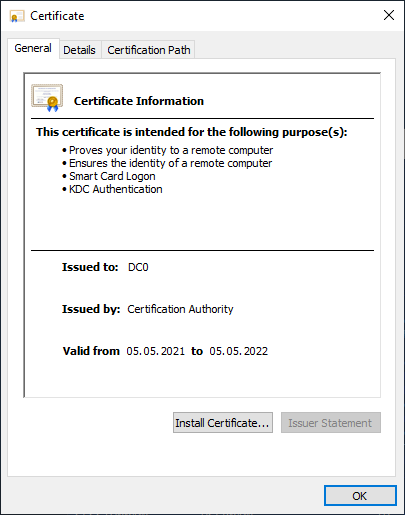
AD DS looks for certificates that have Server Authentication purpose activated, and if there are more than one of those, a certificate lacking the needed purposes may be selected. The purposes / EKU / policies that needed to be activated for on a DC certificate for SystoLOCK, are Smart Card Logon and KDC Authentication. Not only must the certificate posses these EKUs, they should not be disabled by any upstream certificate in the chain, which can easily happen if you use third-party certificates.
¶ The Error
If you happen to encounter a Request Not Supported error during any authentication scenario, most likely you are facing the described problem. Look for the events referring to error numbers 0xC00000BB or 0xD00000BB in the Event Log under System or Security or Systola/SystoLock/LogonUI. Finding those indicate that you need to solve the DC certificate problem.
¶ Diagnostics
To be sure whether you DC certificate is usable for the intended purpose, follow these steps
- Export your DC certificate to a accessible place on the computer, say, Desktop
- Issue a
certutil -verifycommand to check the certificate - Observe Application Policies verified
You can accomplish these steps within PowerShell (do this on your domain controller):
# First, find out the thumbprint of the certificate in question
ls Cert:\LocalMachine\my
$cert = (Get-ChildItem -Path cert:\CurrentUser\My\<YOUR THUMBPRINT>)
Export-Certificate -Cert $cert -FilePath .\dc.cer
&certutil.exe -verify .\dc.cer
At the end of the certutil output you will see the list of "Verified Application Policies". Full set of application policies and their OIDs should look at least like this:
Verified Application Policies:
    1.3.6.1.5.5.7.3.2 Client Authentication
    1.3.6.1.5.5.7.3.1 Server Authentication
    1.3.6.1.4.1.311.20.2.2 Smart Card Logon
    1.3.6.1.5.2.3.5 KDC Authentication
If if does not, you should review your DC certificate issuance procedure or talk to your certificate supplier. Refer to AD CS Installation instruction at the end of the article.
¶ SystoLOCK Helps
If you employ SystoLOCK local CAs or have neccessary certificate templates in place, you can utilise a helper script located under C:\Program Files\Systola\SystoLock\Authentication Server\Scripts\Update-DCs.ps1. Execute this script once in every site and observe its output. The script will attempt to issue new certificates for each domain controller and will restart the KDC service. In rare cases you would need to reboot the domain controllers.